---
title: "How to Automatically Publish My Active Versions to My LMS (LTI Connection)"
url: "https://help.edtake.ai/en/article/how-to-automatically-publish-my-active-versions-to-my-lms-lti-connection"
language: "en"
last_updated: "2025-07-29T14:02:51.428Z"
---
# How to Automatically Publish My Active Versions to My LMS (LTI Connection)
Recommended LTI setup to securely and seamlessly connect edtake to your LMS and enable automated publication of your training modules.
### Connecting edtake to Your LMS via LTI 1.3
edtake can be integrated into your LMS using the LTI 1.3 protocol. Two methods are available depending on your platform’s capabilities: dynamic registration (automatic) or manual registration.
* * *
### 1\. Dynamic Registration (Recommended)
If your LMS supports dynamic registration, this method allows you to configure the integration with edtake automatically.
- **Steps:**
- Go to your **Organization Settings** on edtake and open the **LTI** tab: [click here](https://app.edtake.ai/org)
- Click on **Generate registration link**
- Copy the generated link
- Paste it into the appropriate field in your LMS
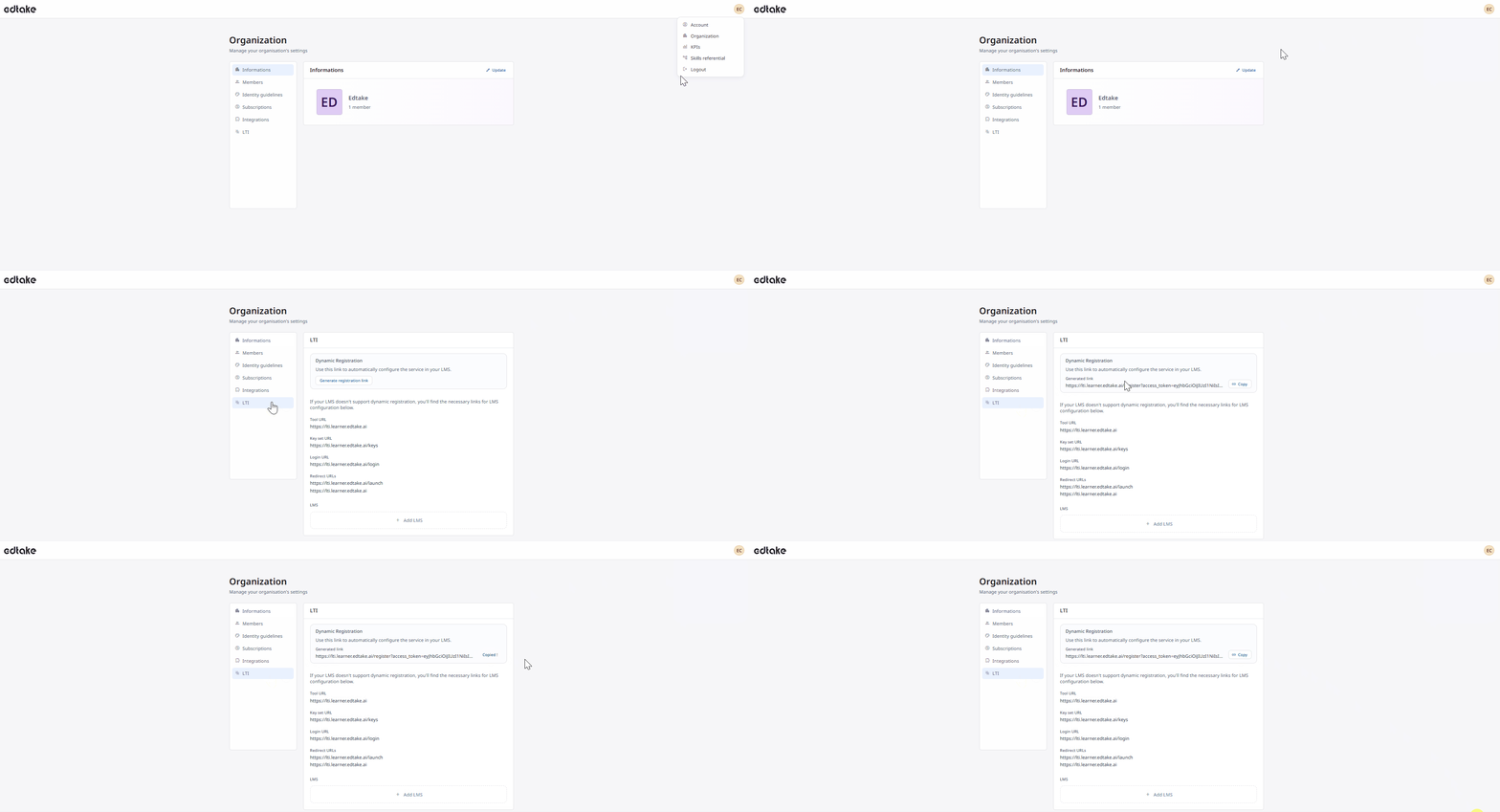
This method is compatible with any LMS that supports LTI 1.3 dynamic registration (such as Moodle or Totara).
* * *
### 2\. Manual Registration
If your LMS does not support dynamic registration, you can manually enter the technical parameters of the edtake tool.
**Steps:**
Go to the **LTI** tab in your Organization Settings on edtake: [click here](https://app.edtake.ai/org)
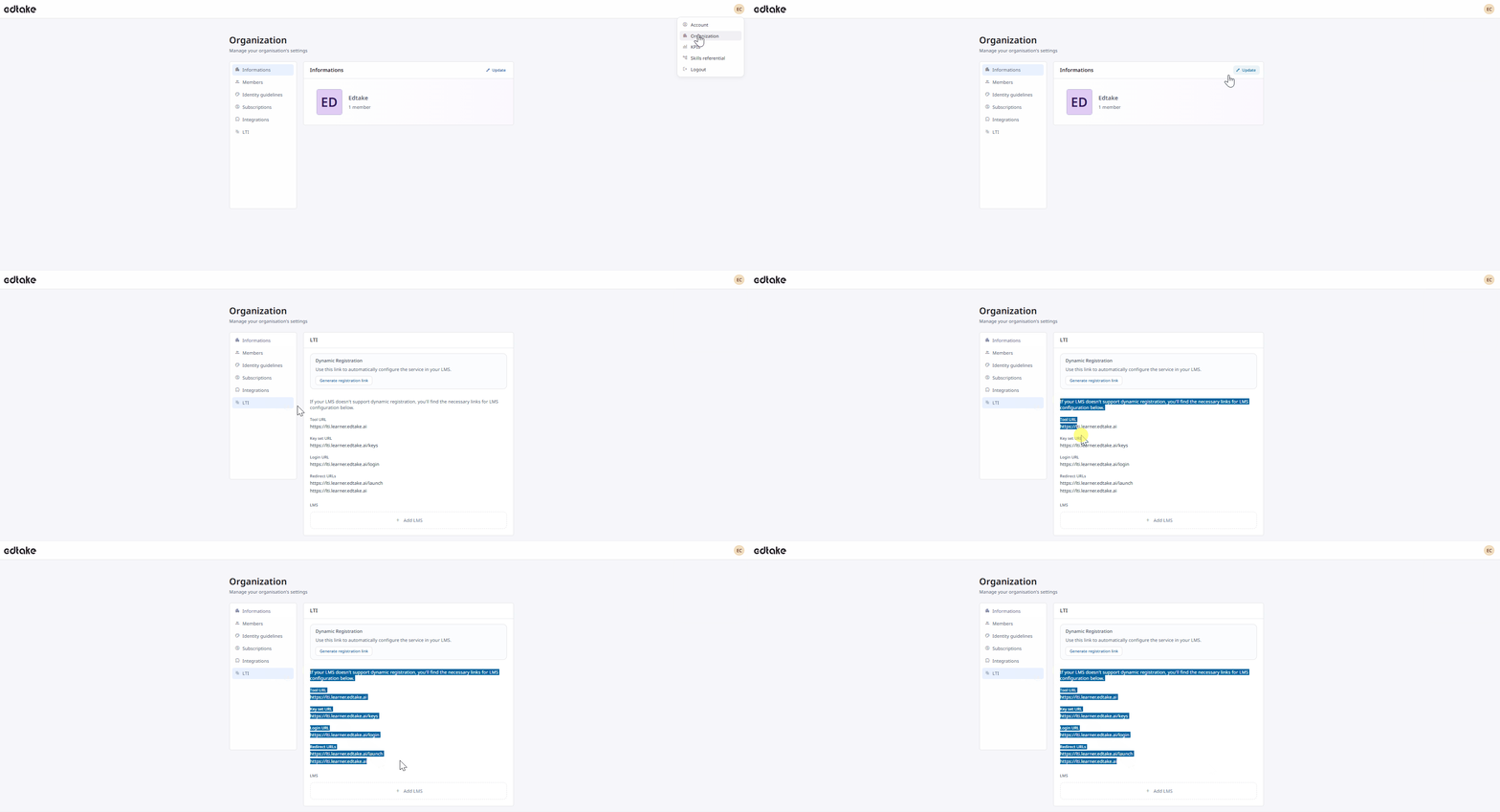
Retrieve the following information:
| **Field** | **Value** |
| --- | --- |
| Tool URL | `https://lti.learner.edtake.ai` |
| JWKS URL | `https://lti.learner.edtake.ai/keys` |
| Login URL | `https://lti.learner.edtake.ai/login` |
| Redirect URLs | `https://lti.learner.edtake.ai/launch`
`` `https://lti.learner.edtake.ai` ``
(Both URLs must be entered exactly as shown in your LMS settings) |
3\. In your LMS, create a new LTI 1.3 tool and enter the above information.
4\. Retrieve the LMS registration data, including:
- Issuer
- Client ID
- Authentication endpoint
- Authorization endpoint
- JWKS endpoint
Return to edtake, go to the **LTI** tab
- Click on **Add LMS**
- Fill in the form with the registration information from your LMS
- Click on **Connect**
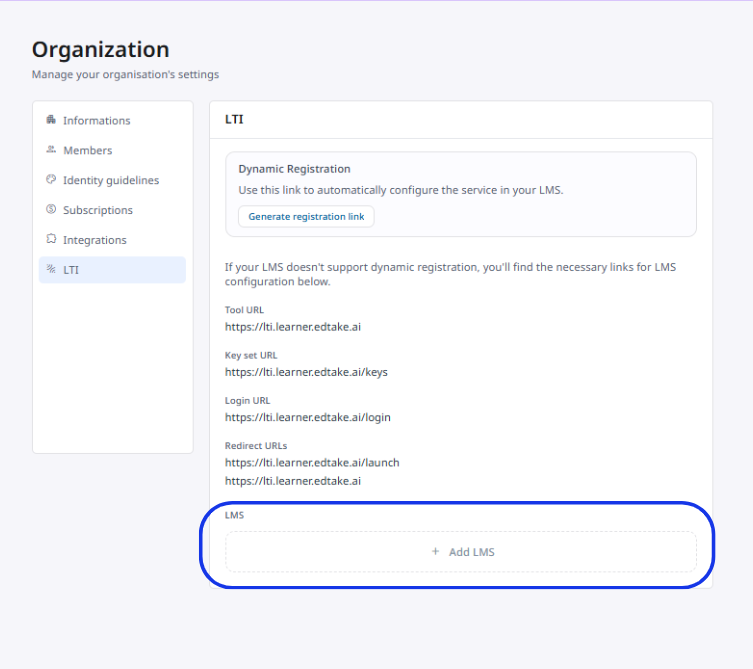
This method is compatible with any LMS that does not support dynamic registration, such as RiseUp, Cegid LMS, or Cegid LCMS.
* * *
**Note:** LTI configuration is only available to customers subscribed to the **TEAM** or **ENGAGE** plans.