
Add a New Learning Object: New Experience
Start Creating Your Resource
Click on + New learning object.
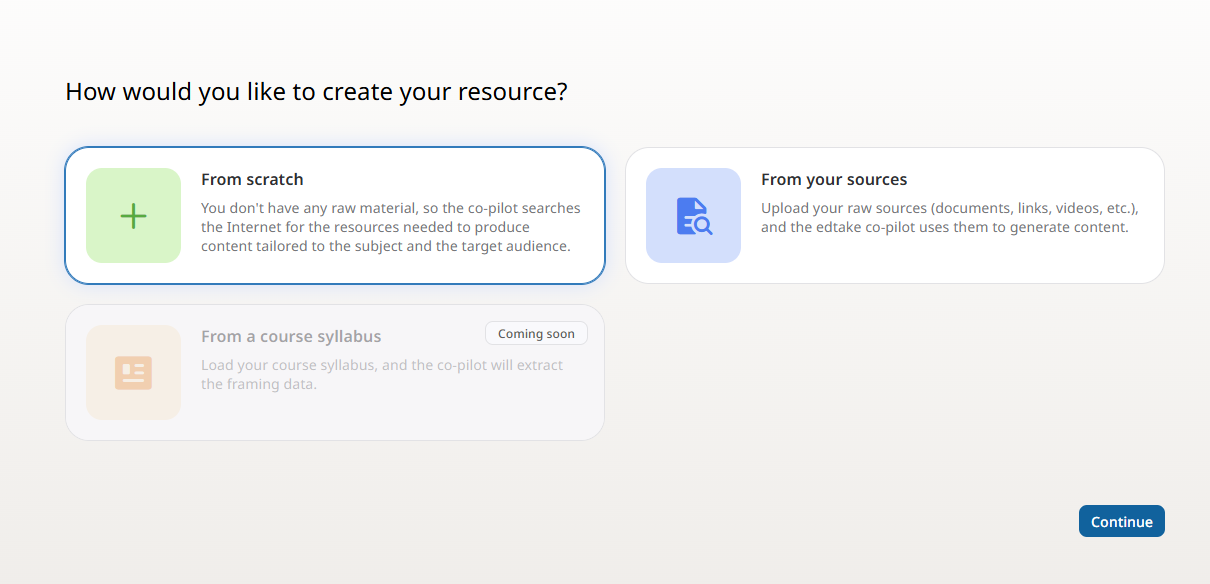
Choose how you want to create your resource:
- From scratch: the AI copilot will search for relevant external resources based on your topic and audience.
- From your own sources: upload your documents, links, or media to guide the creation.
- From a course syllabus: import your syllabus to automatically extract the instructional design data (available exclusively for Engage plan customers) :
Once the syllabus has been analysed by AI, your instructional framework is automatically filled in with:
- The subject and title of the training
- The training objective
- The targeted competency (to be chosen from the competencies extracted from the syllabus)
- The target audience: the AI automatically suggests a persona from your competency framework, based on the profile detected in the syllabus. You can of course modify it or select another one.
- The training summary
- The themes and learning objectives
All these elements can be modified at any time before continuing the creation of your resource, from the Information tab at your module level.
Once you've made your selection, click Continue.
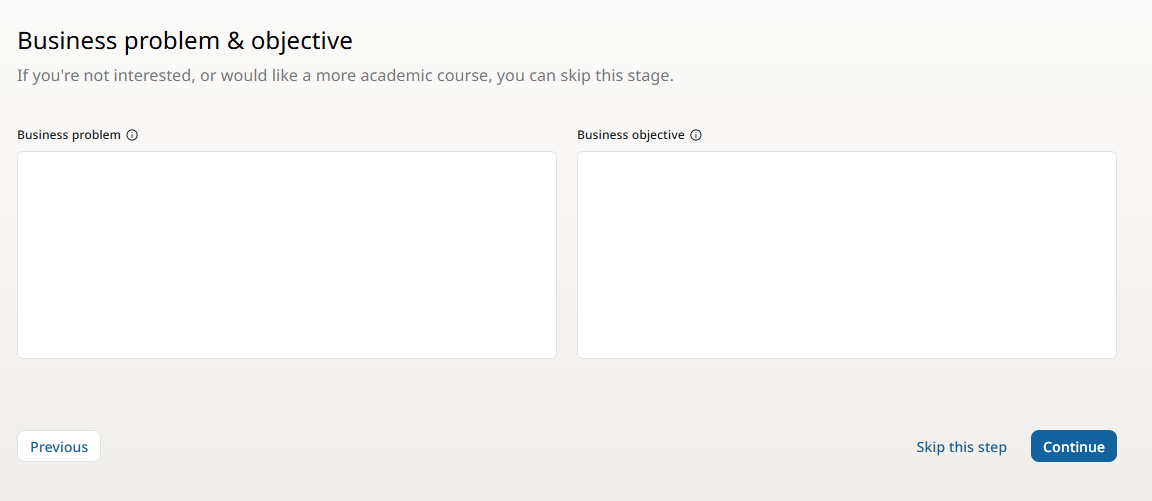
Define an operational problem and an operational objective
You have the option to define:
- An operational problem (optional)
- An operational objective (optional)
Entering this information helps refine the pedagogical framing and ensures the training content is aligned with your business goals.
If you are an educational institution, this step is not required—you can skip it.
This feature was designed to help companies link training more directly to real-life challenges and concrete objectives.
Define the Pedagogical Framework
Specify the key framing elements:
- Topic:
Indicate the main topic of your training. This title will be visible to learners in your LMS and on your dashboard. - Training objective:
The general goal of the course, completing the sentence:
"By the end of this training, learners will be able to..." - Targeted skill:
Select a skill or skill block from the dropdown menu linked to your competency framework.
If you type a new skill that doesn't yet exist in your framework, it will be created automatically and categorized under "Uncategorized." You can reclassify it later.
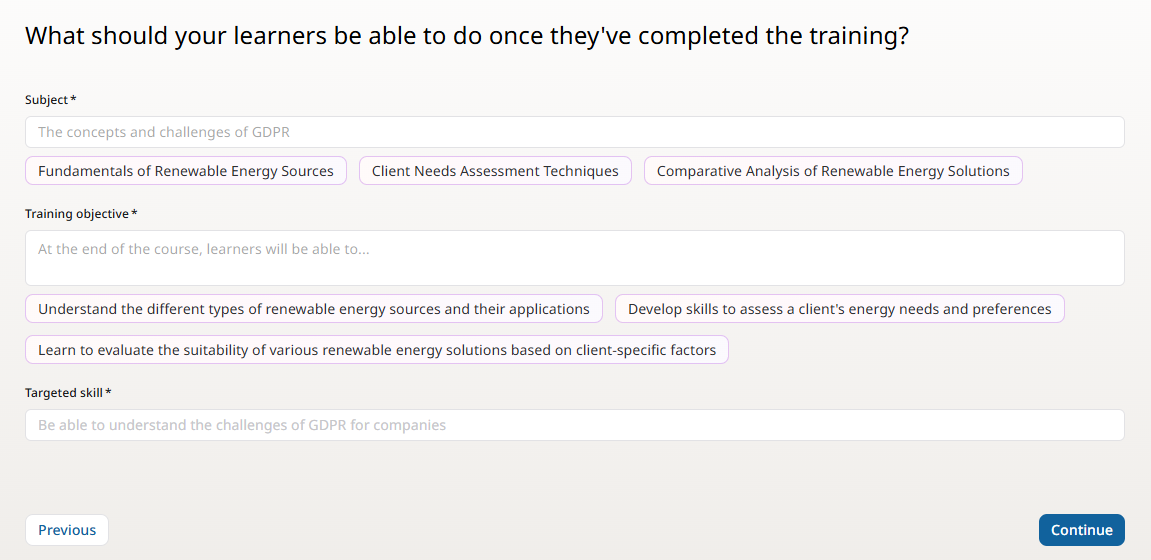
If you have entered a problem and an operational objective, you will automatically receive recommendations for topics, training objectives, and skills, directly linked to your framework.
Target Audience
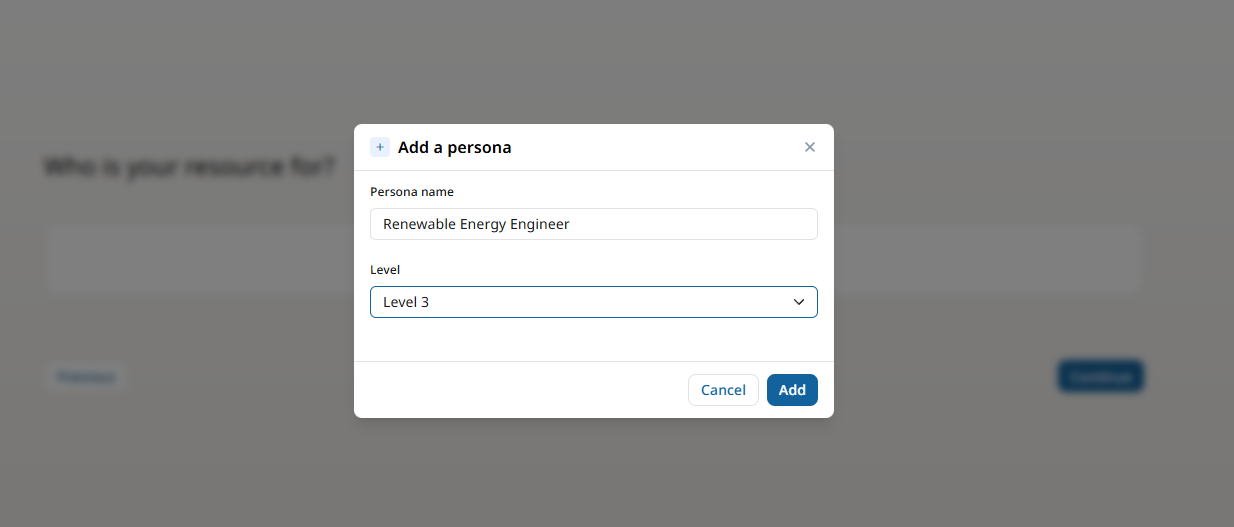
Select one or more personas from the dropdown menu based on your defined personas.
If the selected skill is already associated with a persona, that persona will be added automatically. You can always add or remove personas manually, or create new ones with their corresponding levels if needed.
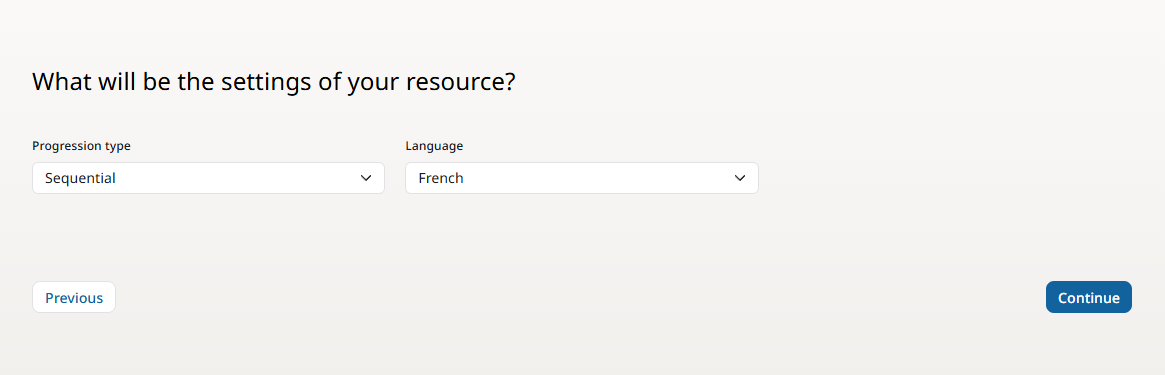
Configure Resource Settings
Choose the following:
Progression type:
- Free: learners can navigate sequences as they wish.
- Sequential: learners must complete each sequence in order.
Resource language:
- Select from the 6 languages supported by edtake.
Add Your Sources
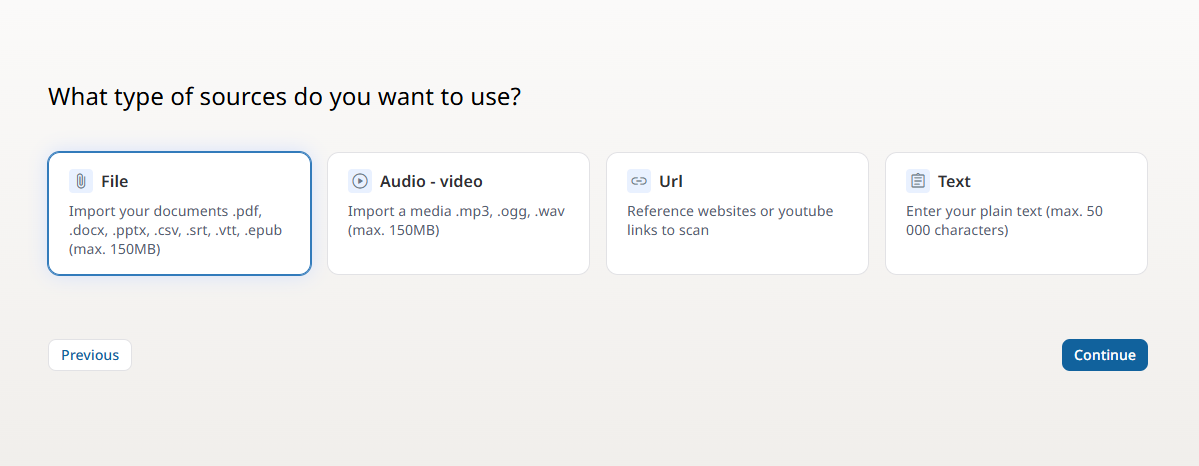
If you selected “From your own sources,” it's time to choose the type of source documents that will form the basis of your training framework. You have several options:
- File (.pdf, .docx, .pptx, etc.): up to 3 files, max 150MB each
- Audio/Video (.mp3, .mp4, etc.): 1 file, max 150MB
- URL (web page, YouTube link, etc.): up to 3 URLs — links must be publicly accessible
- Plain text: up to 50,000 characters
Once the initial framing is complete, you can add as many sources and document types as needed.
Specify the following settings:
- Should the AI rely only on the uploaded sources, or also use external resources?
- Do you want to extract images from your source files to include them in your resource?
About Extracted Images
Images will appear in the "Media" tab.
- The AI will be able to analyze them to:
- Enrich the generated content
- Insert them automatically in relevant parts of your training
- Add a description, which will serve as alternative text for accessibility and improve content quality
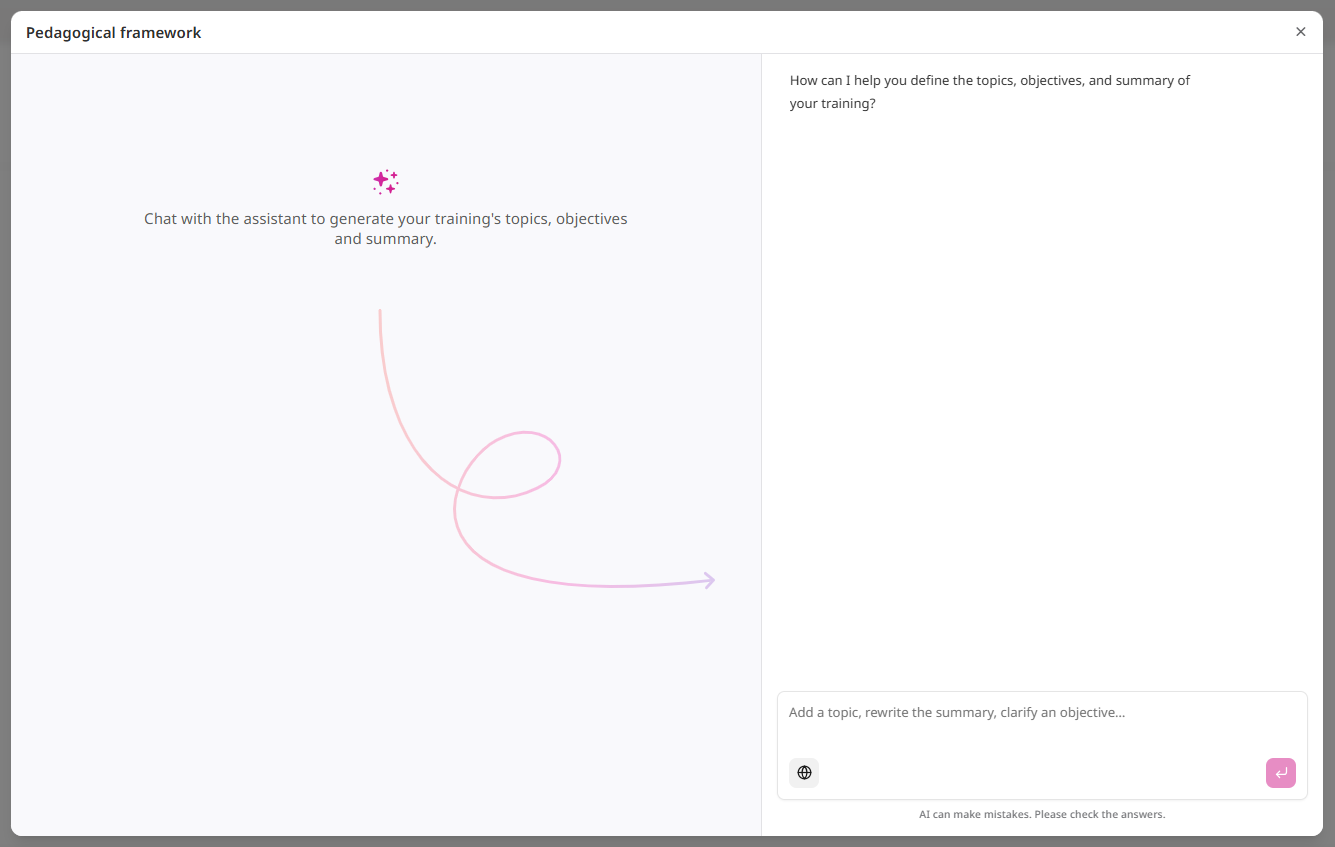
Finalize the Pedagogical Framework
After analyzing your sources, iterate with the scoping agent to define your training themes, learning objectives, and course summary.
Best Practices
- Use one topic and one objective per line for clarity.
- Only audio from videos is analyzed—use clear, relevant audio content.
- During the initial framing, only one type of source is allowed—you can enrich it later.