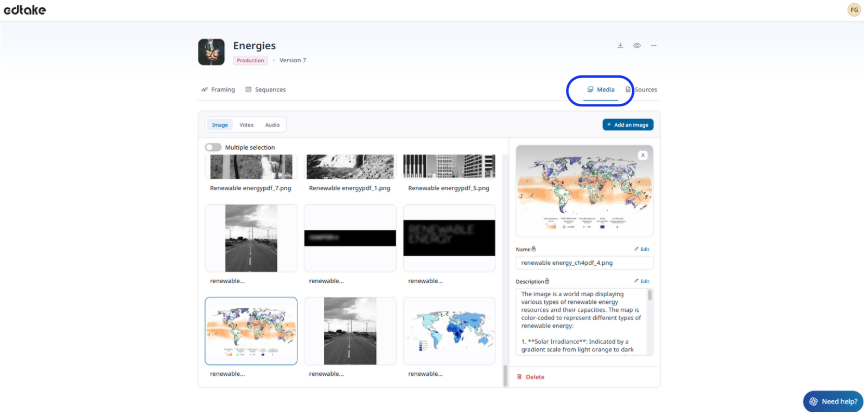
How do I analyze and add images to my source documents?
Our AI allows you to analyze the images associated with your resource, whether they were extracted from your source documents or manually added from your computer.
When uploading your documents, you can check the "Extract images" option to later generate a text description for each visual.
Each description can, of course, be edited at any time using the "Edit" button.
These image descriptions will be used to generate your training content. For example, an analyzed diagram can be transformed into reusable instructional material. The AI will also automatically insert the images into your sequence—provided that they have a description.
⚠️ This analysis step must be completed before the initial content generation to allow the AI to enrich the content with information extracted from the images.
Steps to follow:
- Open your resource.
- Click on the "Media" tab (next to the "Sources" tab).
- You'll find all the images associated with your resource.
- Select one or more images (from your documents or uploads).
- Click on "Analyze image" to automatically generate a description (you can enable multi-selection to analyze several images at once).
- When generating content within a sequence, select "Library media"