
How to customize your organization’s branding
1. Access the configuration
To access the brand identity settings:
- Click on your avatar in the top right corner.
- Select Settings.
- Go to the Brand identity tab.
You will then access all customizable themes within your organization.
2. Understanding how themes work
Each theme defines the visual identity applied to your modules.
- A theme applies at the module level.
- It impacts all sequences within the selected module.
- A theme set as default will automatically apply to all newly created modules.
Themes allow you to:
- Automatically apply a default block theme (if selected before content generation).
- Access custom colors in the block-level color palette.
- Automatically update colors that were previously applied.
3. Create or edit a theme
From the Brand identity tab, you can:
- Edit an existing theme by clicking the ✏️ (pencil) icon.
- Create a new theme if needed.
A configuration window will open. You can then:
- Edit the theme name.
- Set the theme as default.
- Choose a default block theme.
- Modify custom colors.
- Modify complementary colors.
4. Default block theme
The default block theme defines the visual style automatically applied to all blocks when generating or manually adding content within a module.
It determines:
- Background colors.
- Associated text colors.
If the theme is selected before content generation
- Generated blocks will automatically apply the default block theme.
- Custom colors will be integrated from the start.
- If the theme is changed later, all blocks using the theme’s custom colors will update automatically.
This allows you to harmonize an entire module in just a few clicks.
If content was generated without selecting a theme beforehand
- The default block theme cannot be applied retroactively.
- Existing blocks will keep their original formatting.
- Custom colors will remain available in the palette and can be applied manually.
⚠️ Important
Only blocks using colors from the theme palette (Color 1 to 4) will update automatically when the theme changes.
Manually defined colors (outside the theme palette) will not be modified.
Custom colors
Each theme includes 4 custom colors.
For each color:
- One background color.
- One associated text color.
These colors:
- Are available in the block-level color palette.
- Can be modified at any time.
- Will automatically update if they have been used in a module.
⚠️ If you modify a custom color already used in a module, all blocks using that color will update automatically.
Complementary colors
Complementary colors are available when editing a text block.
They allow you to define specific colors for:
- Keywords.
- Highlighted elements.
- Other text emphasis elements.
Please note:
- No complementary color is generated automatically.
- They are fully customizable within each theme.
- They apply only to text elements.
If you modify a complementary color already used in a module, all text elements using that color will update automatically.
5. Apply a theme to a module
To apply a theme to a module:
- Open the relevant module.
- Access the module settings.
- Select the desired theme.
- Save.
The theme will then apply to all sequences within the module.
💡 Recommendation
For optimal visual consistency, it is recommended to select a theme before generating content.
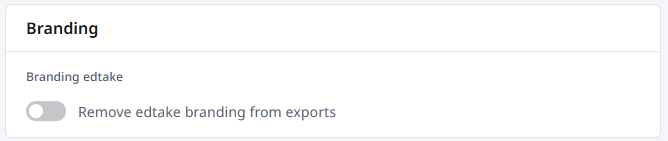
6. edtake branding
If you have a Team or Engage subscription, you can remove the edtake branding so that it does not appear in your exports.
7. Additional customization options
In addition to themes, you can:
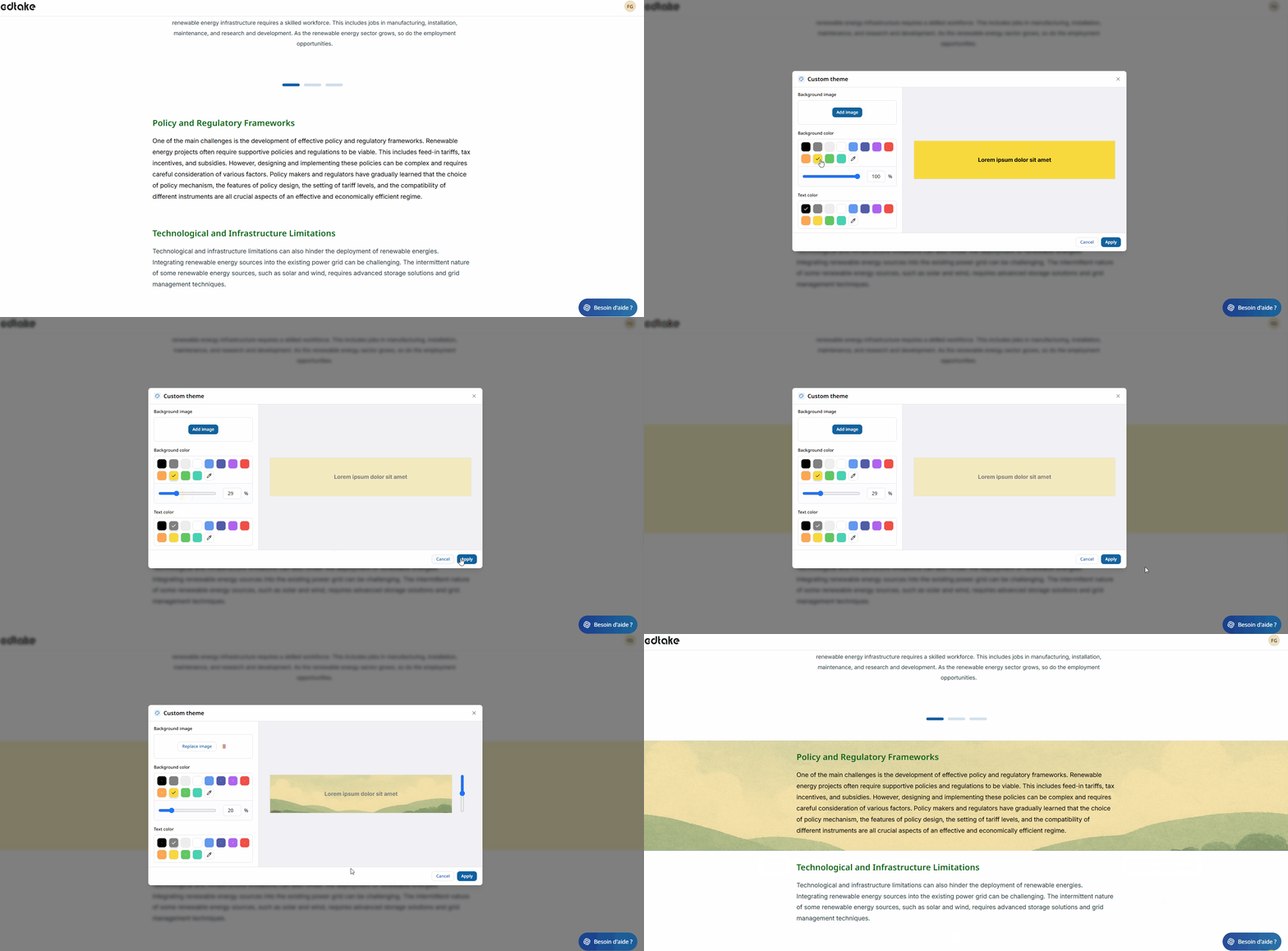
- Manually customize background and text colors during content creation by selecting Custom.
- Add a background image from one of the following sources:
- AI generation
- Your computer
- Clipboard
- Library
- Unsplash
- Pexels
You can then select the most appropriate text color to ensure readability.
Benefits of customization
Adopting a consistent visual identity offers several advantages:
- Stronger brand identity: alignment with your institutional colors.
- Immersive user experience: visual consistency improves navigation and engagement.
- Effective visual hierarchy: better highlighting of key sections and information.
Configuring your brand identity allows you to create training experiences that are consistent, professional, and aligned with your brand.