
Export my edtake content
Once your educational work is complete, it's time to share it with learners. In this article, explore the different methods for exporting your educational content, making it accessible to a wider audience. From file formats to distribution platforms, take a look at best practices to ensure smooth and efficient distribution.
SCORM Export
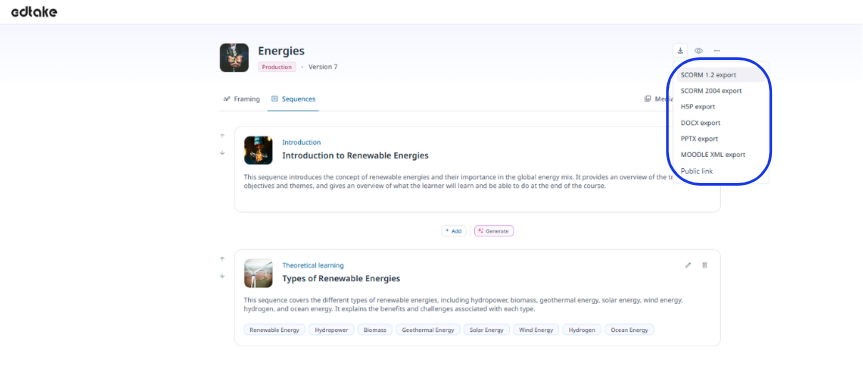
The SCORM (xAPI) export is now available at both the resource and sequence levels, supporting SCORM 1.2 and SCORM 2004 formats! This feature allows you to generate a SCORM file that includes all the sequences of your resource, providing a complete and coherent module for your learners. This solution is ideal for ensuring pedagogical continuity and structured learning. SCORM export simplifies the integration of your educational content with major Learning Management Systems (LMS) by ensuring optimal compatibility.
To export your module in SCORM format, simply click the three dots in the top-right corner of your resource and select "Export SCORM". You can then choose which sequences to include in the export (for example, excluding case scenarios).
- At sequence level, click on the three dots of your sequence, then on “Export SCORM”.
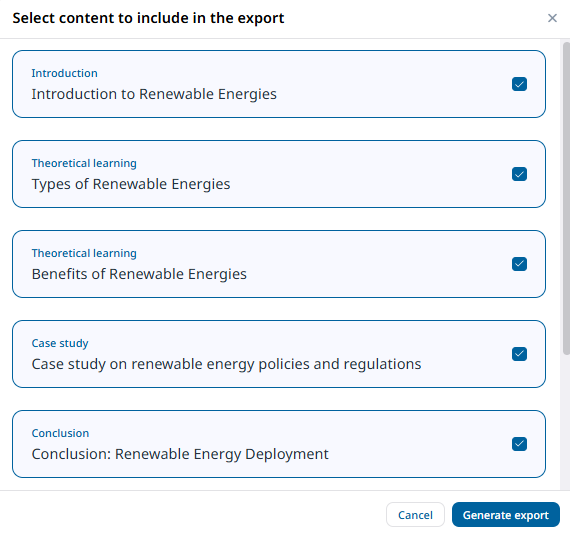
What's more, xAPI compatibility further enriches the possibilities by offering more granular and extensible tracking of learning experiences.
Export in Dynamic SCORM format (Remote SCORM) (Feature available exclusively for Engage plan customers)
The Dynamic SCORM (also known as Remote SCORM) is accessible from your resource's export menu, alongside the classic SCORM formats: SCORM 2004 (Dynamic) and SCORM 1.2 (Dynamic).
It combines the advantages of classic SCORM and an LTI connection: any update to your module is instantly reflected for learners, without the need to re-import a file into the LMS.
Concretely, this means that:
- You make your changes directly on edtake.
- By activating a new version, these changes are automatically applied to the SCORM already uploaded to your LMS.
- No re-export or re-import is needed with each update.
⚠️ As with the LTI connection, you must have published your resource (created a first version) before being able to export in Dynamic SCORM. Furthermore, the file initially uploaded to your LMS must be a Dynamic SCORM — a classic SCORM does not allow this automatic update.
💡 Combined with edtake's versioning system, Dynamic SCORM considerably simplifies the management of your updates: publish a new version on edtake, activate it, and your learners immediately benefit from the up-to-date content.
H5P Export
You have the option to export your training in H5P format. You can then integrate it into your LMS (such as Moodle, RiseUp, or 360 Learning) or into your daily tools.
The export can be done:
At the resource level as a whole: Click the download icon at the top-right of your resource title, then select "Export H5P".
Sequence by sequence: Enter a sequence, then click the download icon at the top-right of your resource title, and select "Export H5P".
Word Export
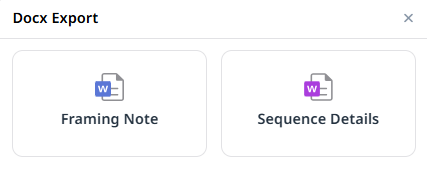
You also have the option to export your training in Word (DOCX) format, either in its entirety or sequence by sequence. Two export options are available:
Framing Notes: Includes only the pedagogical framing and the trainer's notes.
Sequence Details (available in the TEAM subscription): Provides an export containing the content of the sequences.
To export your resource:
Click the download icon at the top-right of your module or sequence.
Select "Export DOCX" and choose the desired option.
PowerPoint Export
The PowerPoint export allows you to transform your resources into presentations. Ideal for conducting in-person or hybrid training, this format facilitates the personalization and adaptation of your content.
The PowerPoint export offers several options to customize your presentation:
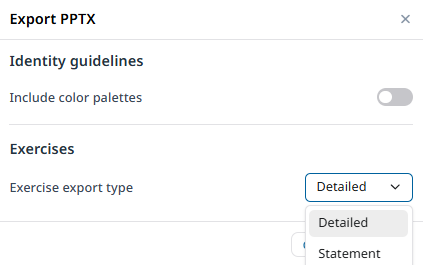
- Integration of your organization's visual identity to maintain visual consistency with your existing materials.
- Choice of exercise detail level: Export only the statements and answers in comments, or opt for a complete display of instructions and pedagogical content directly on your slides.
You can export your training in PowerPoint format at two levels:
- At the complete module level: Click the download icon at the top-right of your resource, then select "Export PPTX".
- At the specific sequence level: Enter the desired sequence, click the download icon at the top-right, and select "Export PPTX".
Quiz Export
At the sequence level, you can export your quizzes to Moodle.
In the desired sequence, click the download icon at the top-right and select the option that suits you:
Export Moodle XML
When you choose the Moodle XML export, an XML file is generated. To import it into Moodle, follow these steps:
Go to your course in Moodle and select "More", then "Question Bank".
Click on "Questions" and select "Import" then "Moodle XML format".
Import the XML file generated by edtake and click "Import" to load your Moodle quizzes.
Public Link Export (available from the TEAM subscription)
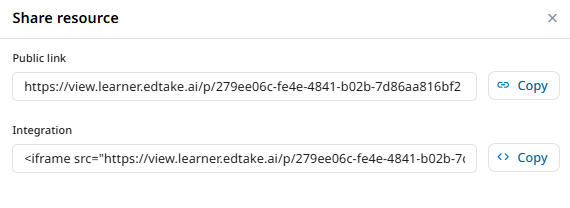
Discover a new way to share your educational content with the Public Link, a feature that allows you to make your resources accessible to an external audience without requiring a login.
To export your resource in Public Link format, simply click on the download icon at the top-right of your module or sequence, then select "Public Link".
- At the module level, the public link is available only if the module has been versioned.
- At the sequence level, the public link is available at all times, as it is not tied to a specific version.
The Iframe Integration option also allows you to embed your content directly on a website, making it easier to share and display your training or sequences to a wider audience, without needing to redirect them to another platform.
Try this feature now to make sharing your educational content easier!